Prefect Kubernetes Infrastructure
IAM User
The IAM user is important because EKS utilizes the user as the cluster admin. This means anyone signed in (even if they have admin privileges over the AWS account) will not be able to see the contents of the cluster unless they are authenticated with the cluster admin IAM user.
User Creation
Navigate to IAM management console
Within the Access Management section click on users
Click Add Users in the upper right corner
Input k8_manager as the username then click next
For permissions if there is an admin user group add the user to that group, if not add the Admin permission to the user
Tag the user with propper tags
Project : Prefect
Created By : <creator>
Resource Name : k8_manager
Deployed Date : <date of deployment>
AWS Resource Accessed : IAM User
Grant CLI Credentials
Click on the k8_manager user
Click on the Security Credentials tab
Click on the Create Access Key button in the Access Keys section to generate new access keys
Copy the Access Key and the Secret Key into a Keeper Record with the directory as the account name, name of the user as the record name, the Access Key as the username and the Secret Key as the password
Configure AWS CLI to utilize those new credentials.
EKS Cluster Creation With Dependencies
Required Resources
eksctl
eksctl is a command line tool that enables you to spin up EKS infrastructure easily. If you dont already have eksctl installed I would reccomend utilizing chocolatey to instlal it. I will leave links to install both chocolatey and eksctl.
chocolatey install
https://chocolatey.org/install
eksctl install using chocolatey
kubectl
In order to control the k8 cluster you will need to have kubectl installed. kubectl allows you to interact with the k8 cluster within AWS
Installing kubectl
https://docs.aws.amazon.com/eks/latest/userguide/install-kubectl.html
EKS Stack Spinnup
This is rather simple. I was able to condense this command into one for easy stack spinnup to have all the necessary resources that will make the EKS cluster possible.
eksctl command
Command Breakdown
--name
This is the name of the cluster you are making. Name it something intentional
--region
This is the region you will be working in. For most instances it will be us-east-1
--fargate
This states that the compute that we will be utilizing is fargate
--version
This is the version of k8 cluster
--zones
this is the different AZ zones that will be utilized
--tags
this is the list of tags that are requried for aws standards
This command will most likely run from 5-10 minutes. Wait for it to complete in terminal or else the control plane may not configure correctly.
Prefect Integration Into Prefect
Once the k8 cluster is configured infrastructure wise, there are still several steps that must be completed in order to integrate Prefect onto the cluster.
Confirm the Context
Confirm the correct context is being utilized. You can do so by running this command below:
If the output is something like: <IAM user>@<cluster name>.us-east-1.eksctl.io then the correct context is being utilized.
Finding Correct Context
If the output is not what was expected look and apply your context utilizing these commands.
Get All Contexts
This will display all of the contexts that are present in your .kubeconfig file. Look for the context that is named: <IAM user>@<cluster name>.us-east-1.eksctl.io and copy the name
Switch to That Context
The correct context is now set and it is time to execute the manifest file to deploy the Prefect Agent
kubeconfig File Contents Share
In order to access the k8 cluster from another physical machine, the contents of the kubeconfig file will be necessary.
Resources
https://github.com/Bear-Cognition/aws_resource_files/tree/main/EKS
Process
Once the contents are confirmed follow these steps
copy contents from local config file and add it to that repository link config file
cluster info
context info
user info
remove certificate-authority-data token and put it in the keeper secret that contains the IAM user information for the EKS cluster
After this step is applied the secret should look something like this
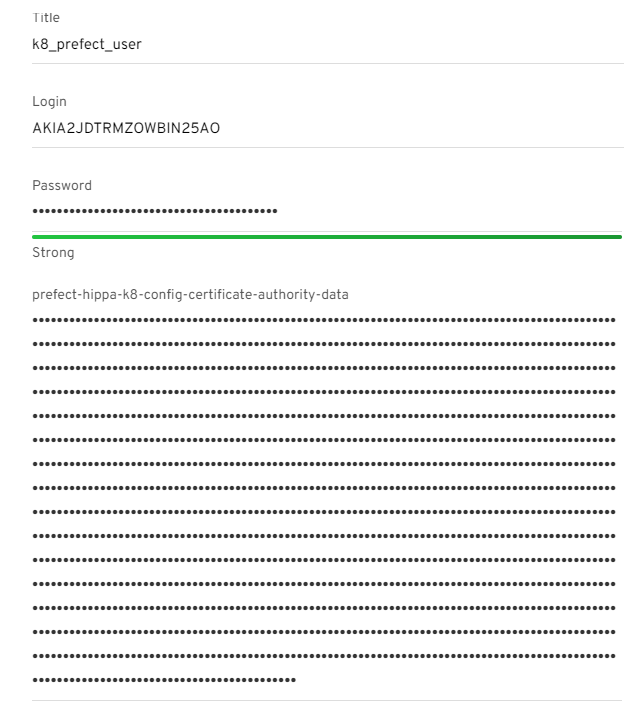
Save the config file in the GitHub repository then push the changes
Deploy the Prefect Agent
This step deploys a Prefect Agent onto the cluster which will control the flow runs that are queued to a specific Prefect Workpool.
K8 Resources
https://github.com/Bear-Cognition/aws_resource_files/tree/main/EKSThis subdirectory in the aws_resource_files GitHub directory contains an example manifest file. This manifest file is what is used to put an agent onto the k8 cluster to start accepting queued flow runs.
Modify and Apply Manifest File
Once the parameterized portions of the manifest file are filled out, the file is saved locally and you are in the files directory, this command will need to be executed:
Confirm Manifest File was Applied
To confirm the manifest file has been applied run this command:
This command gets all of the pods. If there is a pod named prefect-agent-<unique values> and the STATUS of the do is Running, then the manifest file has applied correctly.
Configure Metrics Server
The metrics server is responsible for making the amount of resources being used transparent.
This command pulls the yaml files for the metrics server from the metrics server github repository. It also applies the manifest directly from the download. After running this command check the progress of creation utilizing this command:
Do not create the VPA resources until you see the pods for the metrics server running. If not the VPA resources wont deploy correctly.
Configure VPA
This is the Vertical Pod Autoscaler. It is responsible for looking at pods, seeing if their resources are getting bogged down by compute, and if they are to scale them up.Clone the VPA GitHub Repository
Navigate to the Vertical Pod Autoscaler directory
Execute the vpa-up script. This script executes a series of manifest files creating necessary resources
Check to see if the resources are being created. This may take up to 5 mintues
Confirm Metrics Visability
It is important to make sure the Metrics Server has visibility. If it does not then the Vertical Pod Autoscaler wont work
If these commands return results then all is working well. If this yeilds results such as "metrics server not configured" or another result saying it doesnt have permissions, you will need to do 2 steps:
Fixing Incorrect Metrics/VPA Configuration
Tear Down VPA
Navigate back to the Verical Pod Autoscaler directory in the GitHub Repository
This command deletes all of the k8 resources that were created in the vpa-up.sh step
Tear Down Metrics Server
Next you will need to tear down the metrics server resource
This will delete the Metrics Server resources. The last step is re-install the resources as described above.
Utilizing Prefect in K8
Prefect Deployments Running K8 Infrastructure
How it Runs
In the manifest file there is a value for workpool that must be applied. The k8 infrastructure is now dedicated to that workpool. Anytime a deployment is created, where its infrastructure block is a k8 job, and the workpool is set to the workpool in the manifest file, it will be run on the k8 cluster in EKS.
Work Queues
Work queues should be intentionally named for the project that is being deployed. The work queue does not need to be created prior to a deployment. If it doesnt exist yet it will be automatically created within the workpool upon deployment creation.
Last updated